
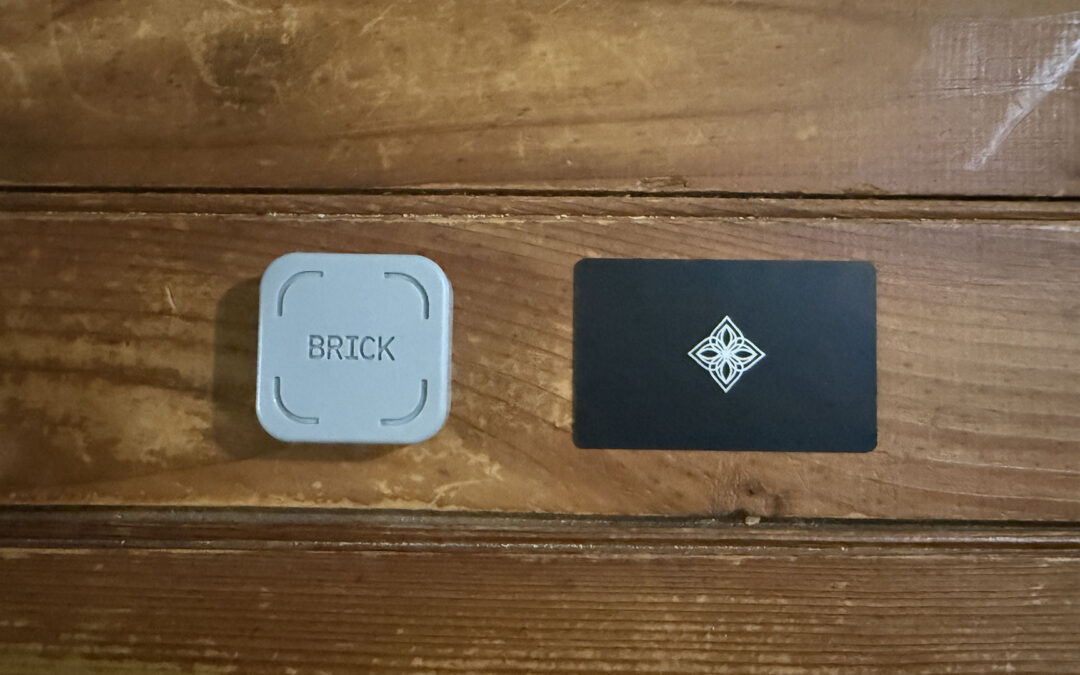
One of the latest productivity trends is disabling your phone using a physical app blocker like Brick or Bloom. (May include affiliate links). Why are people going to extremes to turn their smartphone into a paperweight? Because your smartphone is probably the biggest distraction in your life.
Research shows we reach for our phones 144 times per day—or every 6 minutes and 40 seconds, assuming you sleep 8 hours a day. With that many distractions, it’s a wonder we get anything done at all.
Curious about what all the fuss was about, I put together this Brick vs Bloom comparison of each physical app blocker to see which one I liked best.
What is a Physical App Blocker
A physical app blocker turns off access to virtually all your apps, making your smartphone a lot dumber. The catch is you need a physical device to turn the apps back on, making it a lot harder to “cheat” and use your phone.
Disabling apps sounds extreme, but if you’re checking your phone every 6 minutes, you may need some help to reduce screen time without willpower.
If you have an iPhone you can use Screen Time to block your apps. But all you need is a passcode to bypass Screen Time, making it all too easy to break your focus time. I tried this several years ago and it was useless. Every time I wanted to use the phone I just entered the code. Having a physical device that I can leave in the other room or in my bag is a game changer.
Physical app blockers use near field communication (NFC) chips like what’s in your credit card or key fob to control your phone. Just tap an NFC app blocker and your apps are disabled. Tap again, and it unlocks everything.
Two of the biggest names in the NFC app blocker world are Brick and Bloom. I put them both to the test to help you decide if one of them can help you answer the question how to stop doomscrolling.
Brick vs Bloom
Here’s what is similar about both devices. Both are physical app blockers, meaning you need the physical device to lock and unlock your phone. This helps you reduce screen time without willpower.
Both work on iOS and Android and are free to use after your initial purchase of the device. This was huge for me because no one needs another subscription. The only investment is the device itself, and it can work on multiple phones if that’s something you want.
Blocking or Allowing Apps
Setting up the app that powers the blocking device is relatively easy, although neither physical app blocker comes with great documentation or instructions. I was a little lost at first.
Both devices allow you to only choose 50 apps during the set-up process. Since I wanted to block way more than 50, it took me a minute to realize you could toggle between Block and Allow.
Both devices default to Block, but I think Allow should be the default. This allows you to allow up to 50 apps and block all the rest. Given time, I think I could get my allow list down to well under 50.
Both apps let you create several different modes or profiles that Block or Allow different apps. I haven’t created more than one mode yet, but I could see the benefits of a work profile for apps I use at the office and a home profile for more personal ones.
You can block or allow specific websites on both devices, but Brick’s interface is much better for websites. It makes selecting popular social media sites as easy as checking a box. You can also create your own list of websites that are either allowed or blocked for each mode. Bloom allows you to block websites you frequent a lot, but I don’t see a way to add other websites to my list.
Scheduled Blocking
Both apps offer a couple of different ways to start a focus session. You can physically tap the device to start or you can simply press a button inside the app. I think the best way to start a session is create a schedule to happen automatically. Scheduling takes the friction out of remembering to start.
The schedule feature is where we see one of the first major differences between the two apps. Bloom comes with six pre-set schedules for different parts of the day. You can fully customize them by day of the week, stop and start times, and mode.
Brick does not come with pre-set schedules, so you have to start from scratch. One schedule feature that Brick has the Bloom doesn’t is how you end your scheduled focus session. While both allow you to end the session at a specific time, Brick adds an option to require a physical tap to end it.
Form Factor
Maybe the biggest differences between the two is form factor. The Brick is a square device that can sit on your desk. It’s roughly two inches square and just over half an inch high. It’s got a slip-grip pad on the bottom it won’t slide around or scratch your desk.
The Bloom is a credit card-sized metal card that you can carry in your wallet or backpack. Because it’s metal, it’s not going to bend or break easily. While Brick encourages you to buy multiple devices so you can have one at home and one at the office, Bloom makes it so easy to carry that you don’t need more than one.
Emergency Unlocks and Hitting Pause
Both companies offer a limited number of emergency unlocks if you’re lock out with your device. Brick offers five unlocks while Bloom only offers three. Since these are lifetime limits, I didn’t want to waste one to test out the process.
That said, because I have the Bloom card in my wallet, I can’t imagine needing to use the emergency unlock too often. It seems a lot more likely with Brick, especially if I only have one device and forget to bring it home from the office one day.
One feature that Bloom offers that Brick doesn’t: the ability to pause a focus session. Why does this matter? On my first day using Bloom, I forgot to add my grocery store app. I was standing there at the cash register and was able to pause the focus session for five minutes. If I had been using Brick and didn’t have the device on me, I would have missed out on the “buy two, get three free” cheese deal. (Thank you Harris Teeter)!
Bloom’s scheduled sessions default to three pauses per session, which has been more than enough for me. But you can add more to your schedule if you want but most days I only use one, if that. When your five minutes is up, the phone locks again. I wish there were a 30-second warning, but there’s not.
If you attempt to end your session early, the app prompts you to take a 15-minute pause instead. They call it the “long pause.” Again, it’s designed to be frictionless and to keep you in your focus zone rather than bailing early.
Cost and Presentation
Here’s another area where the two devices separate themselves. Brick is $59.99 and Bloom is $39.99. Because both devices are a one-time investment with no ongoing fees, I don’t think either one is overly expensive.
Don’t think about it as paying for a device that blocks your phone. You’re paying for improved focus and increased productivity. Even though Brick is 50% more expensive than Bloom, I would happily pay $60 to reduce screen time without willpower.
One other quick point on cost, Brick partners with a third-party site to offer FSA/HSA eligiblility. I didn’t buy it that way so I’m not sure how that works, but that might help offset the price difference between the two.
I will also say, while it wouldn’t make any difference to me, I was impressed by how both NFC app blockers arrived. They both come in very attractive cardboard packaging—the Brick in a nice box and Bloom in a snazzy card holder, which had a really unique way of opening. The packaging won’t affect your decision, but it’s a nice touch from both brands.
My Pick: Brick vs Bloom
So, will I keep using a physical app blocker, and if so, which one? Short answer: yes to both! And I think the form factor of Bloom makes it more attractive than the Brick. I also love the pause feature. Just knowing it’s there for if I need it—and the fact that it automatically turns off again—is a huge feature. And not having to start from scratch on the scheduled focus time is nice.
That said, I’d still recommend Brick. It does what you need it to do, and it does it well. If you work from home or plan to keep it at your desk, Brick is a great call.
Conclusion
Overall, I love the concept, especially with the scheduled sessions. I’ve got one set for as soon as my alarm goes off so I can’t pick up my phone and start scrolling. And I have another one set during lunch. I know that sounds odd since I’m not working during that time, but I usually use my lunch break to work on personal projects, and this is how I stop doomscrolling when I could be doing something more meaningful.
If you’re wondering how to stop doomscrolling, I think an NFC app blocker is the perfect thing.